> ## Documentation Index
> Fetch the complete documentation index at: https://docs.rootaccess.ai/llms.txt
> Use this file to discover all available pages before exploring further.
# 4. Set up HIL test benches
> Hardware-in-the-loop testing — define procedures and bridges that let agents validate their work on your real board while they code.
**Hardware-in-the-loop (HIL) testing** is what sets Hideout apart: while an agent writes code in the cloud, it runs your test procedures against the real board on your bench — closing the loop between a firmware change and how the hardware actually behaves. You define those procedures and hardware connections here.
**Where:** Platform → **Testing** page (`/testing`) — or just ask Seb to draft one from the [Agents page](/guide/run-agents) (see [Set up from chat](#set-up-from-chat)). Hardware bridges also require `seb connect` running on the host with the hardware attached.
## Procedures
A procedure is a named verification step saved on the project. Agents run them during implementation to validate their work, giving you confidence in the code they produce.
Common shapes:
* **Smoke test** — boot the firmware, check the expected strings on serial.
* **Calibration check** — run a routine, compare results against expected ranges.
* **Regression** — replay a captured CAN sequence, assert no unexpected frames.
### Add a procedure
The quickest way is to [have Seb draft one for you](#set-up-from-chat) from chat.
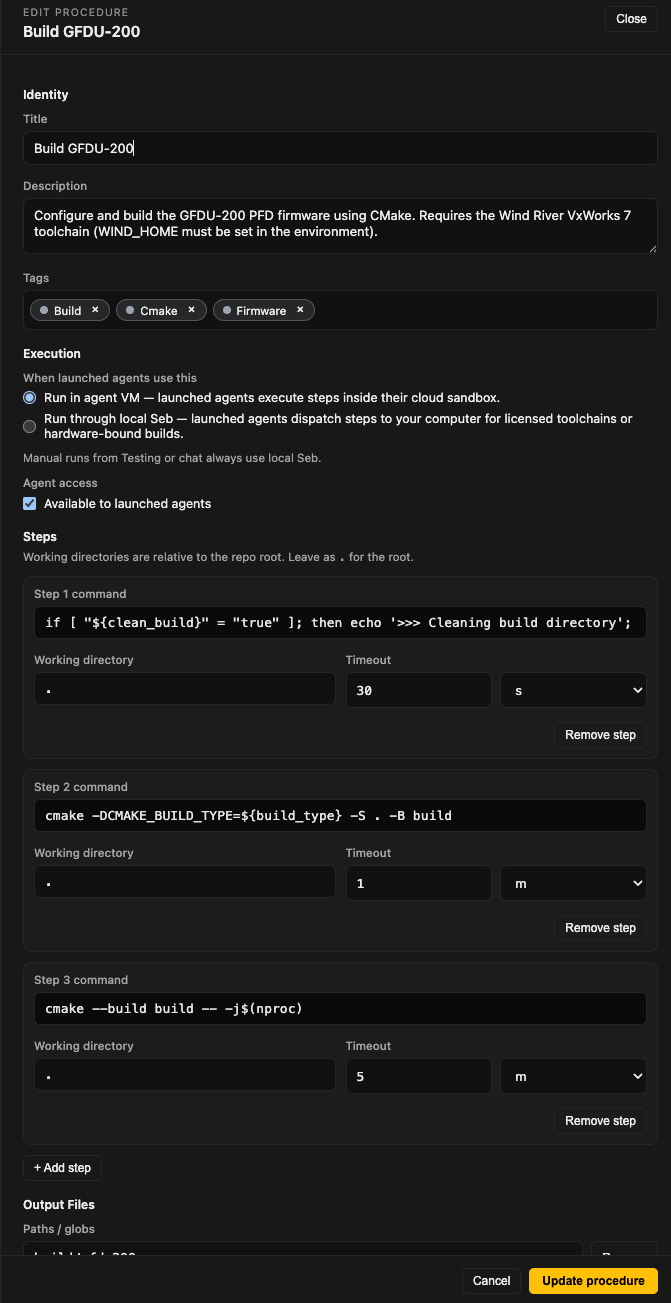
You can also set one up manually: Testing page → procedure list → **+ Add procedure** opens an editor. Fill in:
* **Title and tags** — a name and optional categories.
* **Where it runs** — the agent's cloud VM, or your machine via local Seb (for licensed toolchains or hardware-bound builds).
* **Steps** — the shell commands to run, each with a working directory and timeout.
* **Output files** — path globs to capture from the run.
Saving adds the procedure to the project; it appears immediately for every member.
 ### Run a procedure
Click **Run** on a procedure card. If it takes inputs, a dialog asks for them; live output streams in a side pane. Each run is recorded with timestamp, outcome, and operator.
## Bridges (hardware links)
A bridge is a live stream from a device connected to your **host machine**.
| Bridge | Use |
| ---------------- | --------------------------------------------------- |
| Serial Console | UART monitor |
| CAN Bus | Live CAN traffic, decoded against project DBC files |
| GDB Probe | On-target debug (ST-Link, J-Link, CMSIS-DAP) |
| Saleae Logic | Stream digital + analog signals |
| Ethernet Capture | Capture and inspect frames |
| UDP Receiver | Receive UDP log streams |
Add a bridge from the Testing page → bridge list → **+ Add**.
The **Connection status** pill in Platform's header shows whether a host is online. Without an active host, bridges can't stream and procedures that touch hardware won't run.
## Set up from chat
You don't have to build any of this by hand. On the [Agents page](/guide/run-agents), ask Seb and it drafts the setup for you:
> Write a procedure that builds the firmware with CMake and captures the ELF.
> Set up the serial console on USB device `A50285BI` at 115200 baud.
For a **custom procedure**, Seb reads your repo and fills in the title, steps, where it runs, and output files; for a **built-in bridge** (serial console, CAN bus, …), it fills in the connection fields. Either way it posts a proposal card — nothing is saved yet — and you click **Save to Testing tab**. The result lands on your Testing page identical to a manual setup: runnable by you and by launched agents, and editable in the procedure editor above.
## How agents use this
Agents call procedures while writing code, ensuring proper implementation of the given task. Software-only procedures run on the agent's cloud machine; hardware procedures reach your host machine through the bridges configured here — putting your real board in the loop so the agent validates against actual hardware behavior, not just a build that compiles.
## Next
[Guide → 5. Review in the CLI](/guide/review-in-cli).
### Run a procedure
Click **Run** on a procedure card. If it takes inputs, a dialog asks for them; live output streams in a side pane. Each run is recorded with timestamp, outcome, and operator.
## Bridges (hardware links)
A bridge is a live stream from a device connected to your **host machine**.
| Bridge | Use |
| ---------------- | --------------------------------------------------- |
| Serial Console | UART monitor |
| CAN Bus | Live CAN traffic, decoded against project DBC files |
| GDB Probe | On-target debug (ST-Link, J-Link, CMSIS-DAP) |
| Saleae Logic | Stream digital + analog signals |
| Ethernet Capture | Capture and inspect frames |
| UDP Receiver | Receive UDP log streams |
Add a bridge from the Testing page → bridge list → **+ Add**.
The **Connection status** pill in Platform's header shows whether a host is online. Without an active host, bridges can't stream and procedures that touch hardware won't run.
## Set up from chat
You don't have to build any of this by hand. On the [Agents page](/guide/run-agents), ask Seb and it drafts the setup for you:
> Write a procedure that builds the firmware with CMake and captures the ELF.
> Set up the serial console on USB device `A50285BI` at 115200 baud.
For a **custom procedure**, Seb reads your repo and fills in the title, steps, where it runs, and output files; for a **built-in bridge** (serial console, CAN bus, …), it fills in the connection fields. Either way it posts a proposal card — nothing is saved yet — and you click **Save to Testing tab**. The result lands on your Testing page identical to a manual setup: runnable by you and by launched agents, and editable in the procedure editor above.
## How agents use this
Agents call procedures while writing code, ensuring proper implementation of the given task. Software-only procedures run on the agent's cloud machine; hardware procedures reach your host machine through the bridges configured here — putting your real board in the loop so the agent validates against actual hardware behavior, not just a build that compiles.
## Next
[Guide → 5. Review in the CLI](/guide/review-in-cli).