> ## Documentation Index
> Fetch the complete documentation index at: https://docs.rootaccess.ai/llms.txt
> Use this file to discover all available pages before exploring further.
# 1. Set up a project
> Create a Hideout project, connect your GitHub or GitLab repo, and (optionally) link Jira or Linear.
A **project** groups your code, hardware context, and agent runs. Use one project per firmware codebase.
**Where:** Platform at [hideout.rootaccess.ai/](https://hideout.rootaccess.ai/) → home page → **New project**.
## Create the project
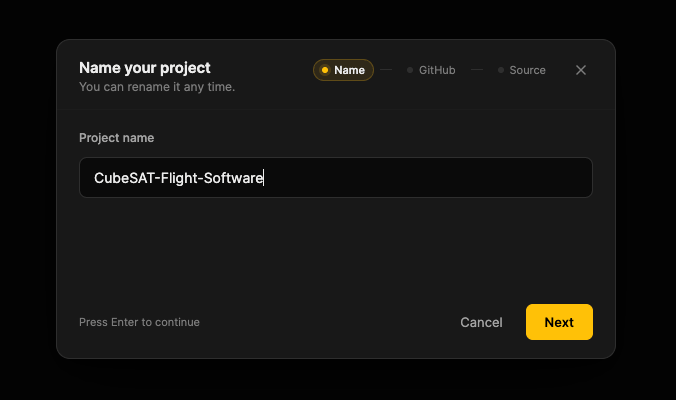
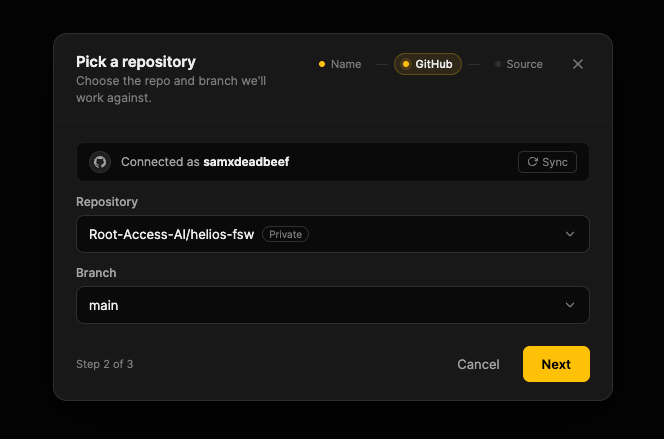
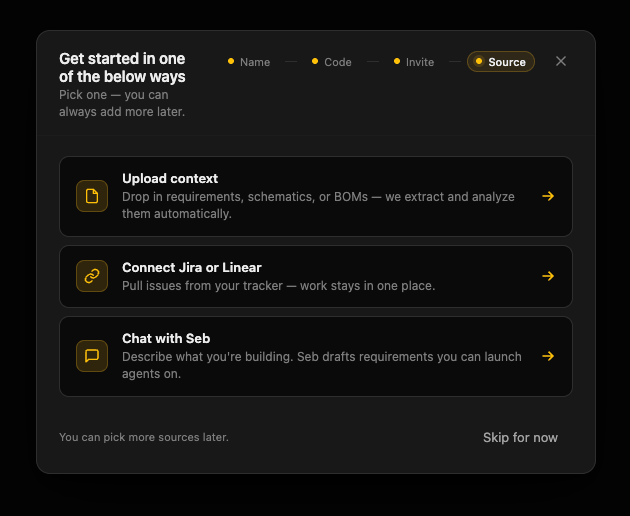
The wizard walks you through four steps:
Pick a name. You can rename later.
 Connect a GitHub or GitLab repo.
 If your organization already has members, pick them from the list to add with one click. You can also invite anyone by email. Everyone joins as a **member**; change roles later in Project Settings → Members. Skip it if you're working solo for now.
Bring in project requirements, link Jira or Linear projects, or directly talk to Seb about what you want to build.
If your organization already has members, pick them from the list to add with one click. You can also invite anyone by email. Everyone joins as a **member**; change roles later in Project Settings → Members. Skip it if you're working solo for now.
Bring in project requirements, link Jira or Linear projects, or directly talk to Seb about what you want to build.
 ## Link a work tracker (optional)
To mention Jira or Linear tickets in your messages when launching agents:
1. Profile → Integrations → **Connect Jira** or **Connect Linear**.
2. Project Settings → Integrations → link a project (Jira) or team (Linear) to this Hideout project.
Once linked, typing an identifier like `KAN-42` or `ROO-1163` when you chat with Seb on the Agents page pulls the ticket's title and description in as context. See the [Jira](/integrations/jira) and [Linear](/integrations/linear) pages for the connection and linking steps.
## Target a compliance standard (optional)
If your project is held to a formal compliance standard — DO-178C, ISO 26262, IEC 62304 — pick the standards on the Context page and set the traceability policy in Project Settings. [Gap analysis](/guide/hardware-context#requirements-and-gap-analysis) uses them to score your codebase.
## Settings, members, danger zone
Project Settings (`/project-settings`) covers rename, traceability policy per requirement level, member invites (owner / admin / member), per-project integration links, and project deletion.
## Next
[Guide → 2. Add hardware & context](/guide/hardware-context).
## Link a work tracker (optional)
To mention Jira or Linear tickets in your messages when launching agents:
1. Profile → Integrations → **Connect Jira** or **Connect Linear**.
2. Project Settings → Integrations → link a project (Jira) or team (Linear) to this Hideout project.
Once linked, typing an identifier like `KAN-42` or `ROO-1163` when you chat with Seb on the Agents page pulls the ticket's title and description in as context. See the [Jira](/integrations/jira) and [Linear](/integrations/linear) pages for the connection and linking steps.
## Target a compliance standard (optional)
If your project is held to a formal compliance standard — DO-178C, ISO 26262, IEC 62304 — pick the standards on the Context page and set the traceability policy in Project Settings. [Gap analysis](/guide/hardware-context#requirements-and-gap-analysis) uses them to score your codebase.
## Settings, members, danger zone
Project Settings (`/project-settings`) covers rename, traceability policy per requirement level, member invites (owner / admin / member), per-project integration links, and project deletion.
## Next
[Guide → 2. Add hardware & context](/guide/hardware-context).